Trend Tool – Configuring a Date Range
Note: You can change configuration settings for this tool in Run mode. However, these settings usually only persist for the current runtime session. When you close the CygNet Studio screen on which the tool resides, the tool settings may revert to those originally configured in Edit mode.
The Data page enables you to define time range and time behavior settings for a trend.
|
Trend Tool - Data Page |
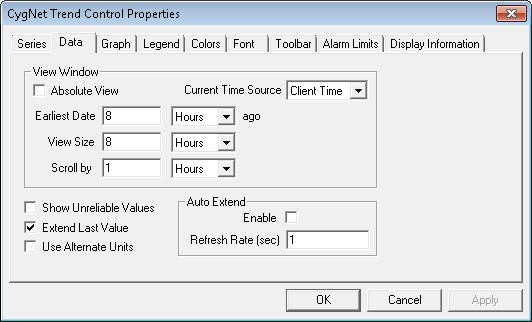
Data Page Properties
The following table lists and describes Data page properties.
| Property | Description |
|---|---|
| View Window | |
|
Absolute View |
Check this box to enable the absolute time options. If left unchecked, time options are relative.
See also AbsoluteDateRange. |
| Current Time Source |
Specifies the source of the current date and time used to define the limits of the view window. Options are as follows:
|
|
The options available to this property vary depending on whether Absolute View is enabled or not. In either case, Earliest Date sets the starting date and/or time for a trend. See also EarliestDate and EarliestDateCount. |
|
| Latest Date | This property sets the absolute ending data and time for a fixed time window for a trend. |
|
This property specifies the relative time range to display on a trend. See also ViewSizeCount and ViewSizeUnits. |
|
|
Scroll by |
This property displays the number and time unit by which you can scroll forwards and backwards through a Trend Tool. |
| Auto Extend | |
|
Check to enable Auto Extend. If enabled, the Auto Extend property provides a method for the trend to request new data at a specified interval. This gives the appearance that the trend is trending data at a real-time pace. If disabled, a trend is populated once with data from the Value History Service (VHS). See also AutoExtendEnabled. |
|
|
Refresh Rate (sec) |
This property specifies the number of seconds to wait before an auto-extended trend refreshes. It takes precedence over the value specified in the TheView’s [UpdateInterval] property. See also AutoExtendRateSec. |
| Other | |
|
Show Unreliable Values |
Displays unreliable values. By default, unreliable values are not displayed. See also ShowUnreliable. |
|
Select this option to extend a series from its latest plotted point up to the latest time displayed on the trend. If used in combination with Auto Extend, a horizontal line is dynamically drawn forward into trend time until the next plotted point generates. See also ExtendLastValue. |
|
|
Use Alternate Units |
If enabled, displays the series in alternate units as specified in the Point Service (PNT) point record. By default, series are displayed in primary units. If a point is not configured for alternate units, a message is displayed indicating so. See also AlternateUnits. |


